 InvoiceTap
Labour and materials
How to invoice for labour and materials
See how to bill hourly labour and materials on one invoice, with a $245 example, decimal hours and an iPhone PDF walkthrough.
A labour and materials invoice example
A tap replacement takes 2 hours and 30 minutes. At $60 per hour, that’s $150 in labour. One mixer tap and fitting costs $95, making the subtotal $245. The client can see how the total was worked out.
| Description | Quantity | Rate | Amount |
|---|---|---|---|
| Tap replacement labour | 2.5 hr | $60.00 | $150.00 |
| Mixer tap and fitting | 1 | $95.00 | $95.00 |
| Subtotal before tax or discount | $245.00 | ||
Use the billing basis you agreed with the client. If you agreed on a fixed price, invoice the agreed amount and use the description to explain what it covers. See the estimate versus invoice example for a fixed-price job.
Convert time to decimal hours
Divide the minutes by 60 and add the result to the whole hours. For example, 15 minutes is 0.25 hours, 30 minutes is 0.5 hours, and 45 minutes is 0.75 hours. For 2 hours and 30 minutes, enter 2.5 hours. An entry of 2.30 hours works out to 2 hours and 18 minutes.
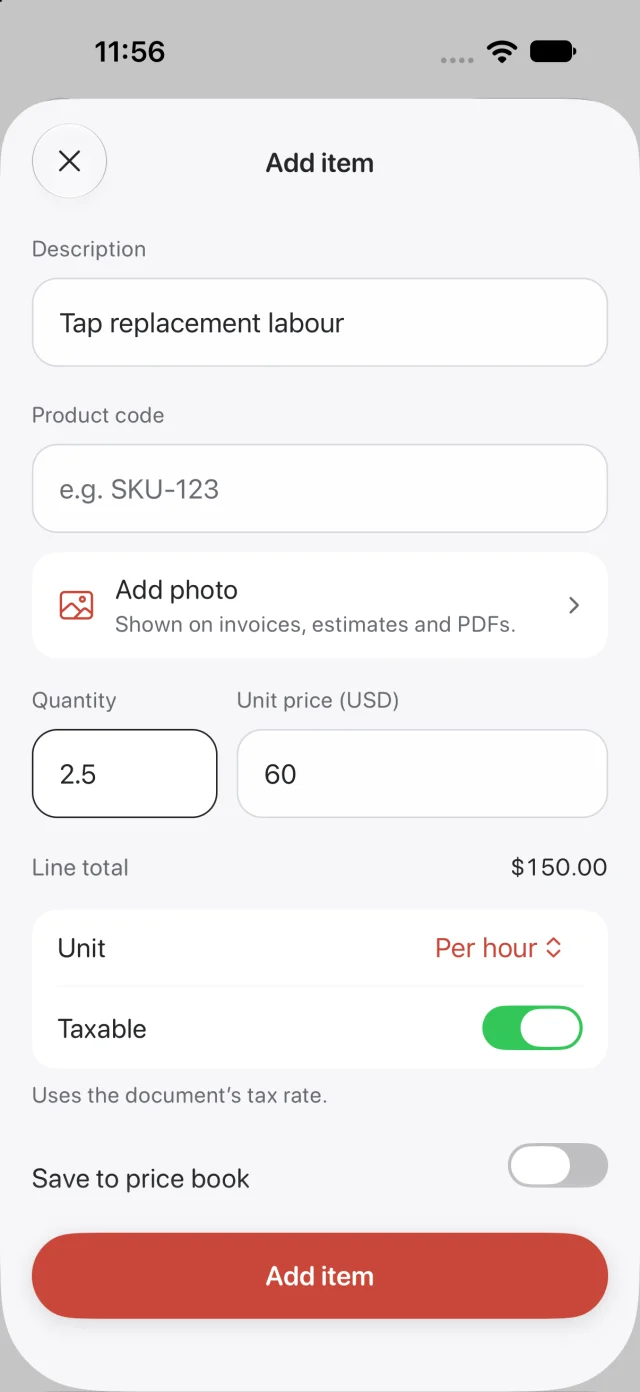
In InvoiceTap, choose your client and tap Add item under Work & materials. Enter Tap replacement labour, set the quantity to 2.5 and the unit price to 60. Choose Per hour as the unit. InvoiceTap calculates the $150 line total from the hours you enter.
List parts and supplies separately
Create a second item called Mixer tap and fitting. Use a quantity of 1, a unit price of 95 and the unit Each. If you supplied several types of parts, give each meaningful charge its own line. “Two braided supply hoses” tells the client more than “Miscellaneous parts”.
For an item you use regularly, you can save its description, unit and price to your InvoiceTap price book. Check the price for the current job when you reuse it. If a part or extra task changed the agreed scope, refer to the client’s approval on the invoice.
Check the invoice and preview the PDF
Review the client, invoice number, issue date, due date and payment instructions. Compare the line totals with your job notes and review any tax or discount that applies to your job. The example above shows the subtotal before either is applied.
In InvoiceTap, save a draft and open Preview from the invoice detail screen. Read the PDF as your client would. Check that the business name, work and amounts are easy to find. When you’re satisfied, issue the invoice and check the issued PDF before sharing.